


You wrote a great message. You submitted it. Meta said no. Now what?
This happens to almost everyone who uses the WhatsApp Business API. Template rejections are common. They are also frustrating.
The good news? Most rejections follow a pattern. Fix the pattern. Get approved. This checklist covers 27 real reasons Meta rejects WhatsApp templates. Each one includes what went wrong and how to fix it. Let's start.
What Is a WhatsApp Message Template?
A template is a pre-approved message format. You must get Meta's approval before sending it. This applies to all outbound messages sent outside a 24-hour chat window.
Templates can include:
Text
Images
Videos
Documents
Buttons
Variables (placeholders)
Meta reviews every template manually. They check for policy compliance, clarity, and user safety.
If something looks off, they reject it.
Learn more in our guide to Meta-approved WhatsApp templates.
Why Does Meta Reject Templates?
Meta protects users from spam and scams. Their review process is strict. According to Meta's official template guidelines, templates must be clear, honest, and useful.
If your template seems misleading, pushy, or vague, it gets rejected.
Here are the 27 most common reasons.
Category 1: Policy Violations
1. Promotional Content in Utility Templates
You picked "utility" but wrote a sales pitch. Utility templates are for updates, alerts, and confirmations. Not promotions.
Fix: Use the "marketing" category for anything promotional.
2. Asking for Sensitive Information
You asked for passwords, PINs, or payment details. Meta blocks this to prevent phishing.
Fix: Never request sensitive data in a template. Direct users to a secure portal instead.
3. Threatening or Aggressive Language
Your message sounded like a warning or threat. Even phrases like "Act now or lose access" can trigger rejection.
Fix: Keep the tone calm. State facts without pressure.
4. Misleading Claims
You promised something you cannot prove. Examples: "Guaranteed results" or "100% safe."
Fix: Remove guarantees. Use honest, specific language.
5. Mentioning Competitors
You named another brand or service. Meta does not allow this.
Fix: Focus only on your own offer.
6. Illegal or Restricted Products
You promoted alcohol, tobacco, weapons, or drugs. These are banned on WhatsApp.
Fix: Do not promote restricted items. Check Meta's Commerce Policy for the full list.
7. Adult Content
Your message contained sexual or suggestive content. This includes dating services with explicit language.
Fix: Keep all content appropriate for all ages.
Category 2: Formatting Errors
1. Too Many Variables
You used too many placeholders. Meta gets suspicious when most of the message is dynamic.
Fix: Limit variables. Add more fixed text for context.
2. Variables Without Context
Your placeholder had no explanation.
Example: "Hi {{1}}, your {{2}} is {{3}}." Meta cannot verify what this means.
Fix: Add static text around each variable. Example: "Hi {{1}}, your order {{2}} is ready for pickup at {{3}}."
3. Incorrect Variable Format
You used the wrong syntax. The correct format is {{1}}, {{2}}, {{3}}.
Fix: Double-check all placeholders before submitting.
4. Missing Variable in Sample
You added a variable but left the sample blank. Meta needs to see a real example.
Fix: Fill in every variable with a realistic sample value.
5. Special Characters in Wrong Places
You used symbols that broke the formatting. Examples: Unescaped brackets, slashes, or emojis in odd spots.
Fix: Remove unnecessary symbols. Test the preview before submitting.
6. Excessive Caps or Punctuation
YOU WROTE LIKE THIS!!!! Meta sees this as shouting or spam.
Fix: Use normal sentence case. One exclamation mark maximum.
7. Template Too Long
Your message exceeded the character limit. The limit is 1024 characters for the body.
Fix: Cut unnecessary words. Say more with less.
Category 3: Intent Mismatch
1. Wrong Category Selected
You picked "utility" for a marketing message. Or "authentication" for a promotional offer. Meta checks if the content matches the category.
Fix: Choose the correct category. Read Meta's category definitions carefully.
2. Vague Purpose
Meta could not understand the message goal. Example: "Hello! We have news for you."
What news? Why?
Fix: Be specific. State the purpose in the first line.
3. No Clear Call to Action
Your message did not tell the user what to do.
Fix: Add a clear next step. Example: "Reply YES to confirm."
4. Authentication Template Misuse
You used the OTP category for non-authentication messages.
Fix: Only use authentication templates for login codes and verification.
Category 4: Button Errors
1. Button Text Too Long
Your button label exceeded 25 characters.
Fix: Shorten the text. Keep it under 20 characters to be safe.
2. Button URL Mismatch
The button URL did not match your registered domain.
Fix: Use only URLs from your verified business domain.
3. Too Many Buttons
You added more buttons than allowed. The limit is 3 quick reply buttons or 2 call-to-action buttons.
Fix: Remove extra buttons. Prioritize the most important action.
4. Missing Button Type
You added a button without specifying the type.
Fix: Define each button as "quick reply," "URL," or "phone number."
Category 5: Content Quality Issues
1. Spelling and Grammar Errors
Your message had typos. Meta may reject templates that look unprofessional.
Fix: Proofread carefully. Use a spell checker.
2. Duplicate Template
You submitted a template that already exists.
Fix: Check your existing templates before creating new ones.
3. Low-Quality Media
Your image or video was blurry or too small.
Fix: Use high-resolution files. Images should be at least 500x500 pixels.
4. Irrelevant Media
Your image did not match the message content.
Fix: Only attach media that supports the message purpose.
5. Generic or Spammy Language
Your message sounded like bulk spam. Examples: "Limited time offer!" or "You won't believe this!"
Fix: Write like a real person. Be specific about the value.
How to Avoid Rejections
Follow these habits:
Read the category definitions before choosing
Write clear, specific messages
Fill in all sample values
Proofread before submitting
Check button limits and URL domains
Avoid hype words and pressure tactics
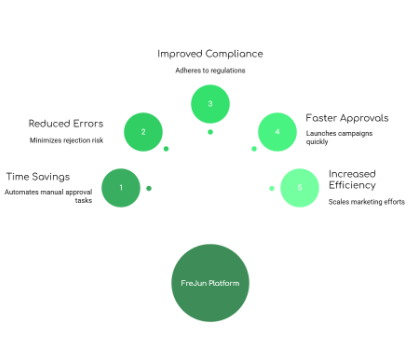
Need help writing templates that get approved the first time? WUSeller offers template writing and approval services.
What to Do After a Rejection
Do not panic.
Read the rejection reason carefully
Compare your template to this checklist
Edit and resubmit
Most templates get approved on the second try. If you keep getting rejected, the issue may be your business verification or account quality. Read our guide on why templates get rejected and how to fix it.
Conclusion
Template rejections happen. But now you know the 27 reasons why. Use this checklist before every submission.
Fix problems before Meta finds them.
Need expert help? Book a free consultation with WUSeller and get your templates approved faster.